Guides
How to Batch Resize Images Online for Free
By LoveConverts TeamApril 12, 2026 4 min read
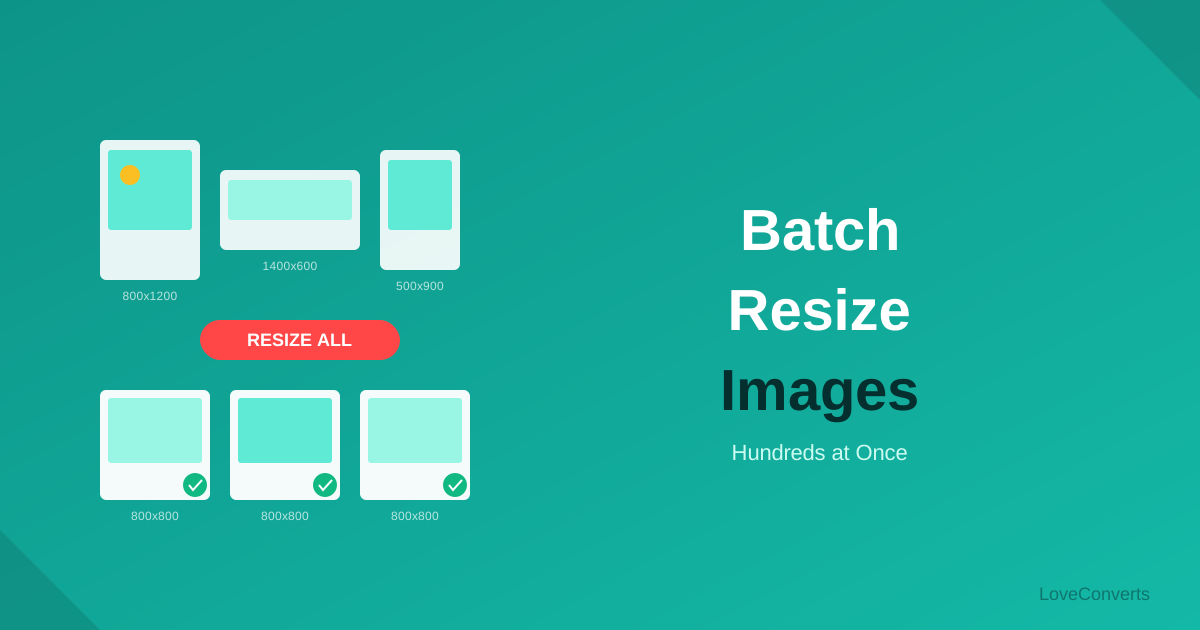
Resizing images one at a time is slow and tedious. If you need a whole folder of photos at specific dimensions, batch resizing lets you process them all in one operation. Upload, set the target size, download a ZIP with all resized images.
How to Batch Resize Images
- Open the image resizer on LoveConverts.
- Upload all your images. Drag and drop up to 30 files at once.
- Set the target dimensions. Enter a width (height adjusts automatically) or choose a preset like "Instagram Post" or "1080p."
- Click Resize.
- Download the ZIP containing all resized images.
Common Batch Resize Scenarios
- E-commerce product photos: Resize all product images to 800x800 or 1000x1000 for consistent catalog presentation.
- Social media content: Resize a week's worth of posts to 1080x1080 for Instagram or 1200x630 for Facebook.
- Website migration: Resize all blog images to a consistent width (e.g., 1200px) when moving to a new design.
- Presentations: Resize photos to 1920x1080 for slide backgrounds.
Resize Then Compress for Maximum Savings
Resizing alone significantly reduces file size (fewer pixels = smaller file). But you can save even more by running the resized images through the compressor afterward. The typical workflow:
- Batch resize to target dimensions
- Batch compress at quality 80-85
This two-step process can reduce a folder of 5MB photos to 100-200KB each, which is ideal for web use.
Aspect Ratio Considerations
If your images have different aspect ratios (some landscape, some portrait) and you need them all at the same dimensions, you have two options:
- Resize by width only: All images get the same width, but heights vary. Good for blog images and galleries.
- Crop then resize: Use the crop tool first to get a uniform aspect ratio, then batch resize. Good for product grids and social media.


