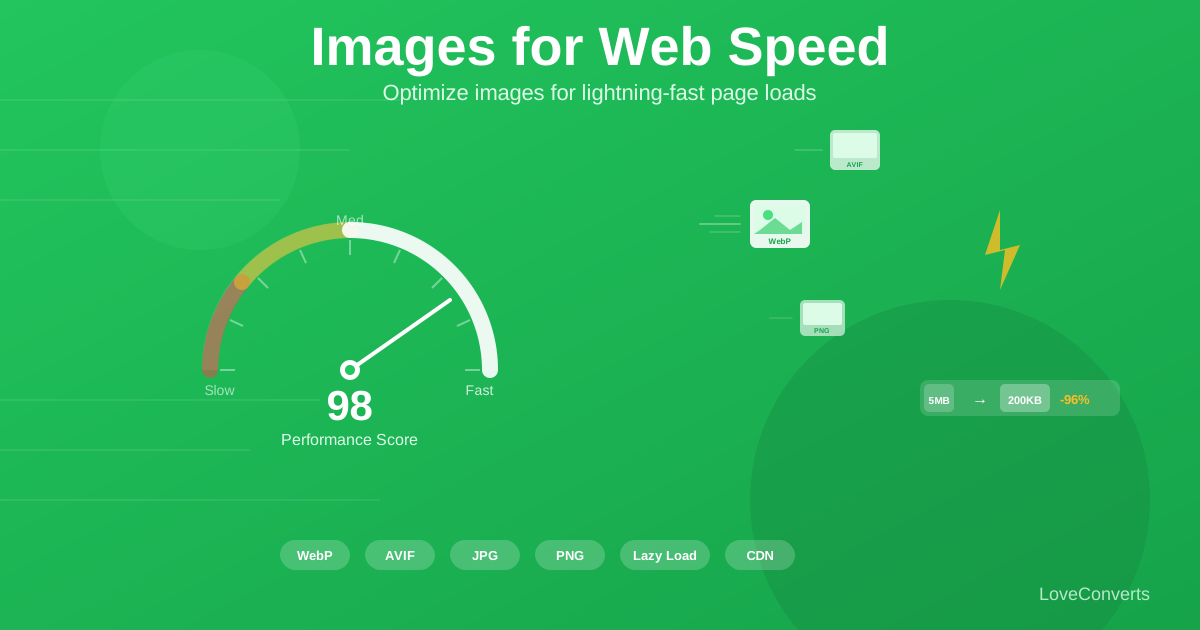
How to Optimize Images for Faster Web Performance
If your website takes more than 3 seconds to load, you are losing visitors. Studies consistently show that 40% of people leave a site that takes longer than 3 seconds. The biggest contributor to slow load times? Images. They typically account for 50-80% of total page weight. Optimizing images for web performance is the highest-impact improvement you can make.
Step 1: Choose the Right Image Format
The format you serve has a bigger impact than any other optimization. Here is the priority order for web images in 2026:
- AVIF: Smallest files. 50%+ smaller than JPG. 20-30% smaller than WebP. Use with fallbacks.
- WebP: 25-35% smaller than JPG. Universal browser support. The safe default.
- JPG: Largest files of the three but zero compatibility issues. Use only as a last fallback.
- SVG: For vector graphics (logos, icons). Infinitely scalable, tiny files.
Convert your existing JPG images to WebP as the minimum optimization. For additional savings, also generate AVIF versions and serve them using the HTML picture element.
Step 2: Resize to Actual Display Dimensions
This is the single most impactful optimization and the one most people skip. If your page displays an image at 800px wide, there is zero reason to serve a 4000px wide original.
Use the image resizer to scale images to their actual display size (or 2x for retina screens):
- Blog content images: 1200px wide maximum
- Hero/banner images: 1920px wide maximum
- Thumbnails: 400-600px wide
- Product images: 800-1000px wide
A 4000x3000 photo resized to 1200x900 drops from 5MB to about 400KB before any compression. That is an 92% reduction just from resizing.
Step 3: Compress at the Right Quality Level
After choosing the right format and size, compress to reduce file size further. Use the image compressor with these settings:
- JPG/WebP quality 80-85: The sweet spot. 60-70% smaller files with invisible quality loss.
- PNG: Use the compressor's lossless mode. Typical 20-40% reduction.
- Hero images: Quality 85-90 if they are large and prominent.
- Thumbnails: Quality 70-75 is fine since they are viewed small.
Step 4: Implement Lazy Loading
Lazy loading defers off-screen images until the user scrolls to them. This drastically reduces initial page load time because only above-the-fold images load immediately.
In HTML, add the loading attribute: <img loading="lazy">. This is supported by all modern browsers and requires zero JavaScript.
Do NOT lazy load the first visible image (hero/header image). That image needs to load immediately for good Largest Contentful Paint scores.
Step 5: Set Explicit Width and Height
Always include width and height attributes on your img tags. Without them, the browser cannot reserve space for the image before it loads, causing layout shifts (poor Cumulative Layout Shift scores).
The Complete Optimization Checklist
- Resize to actual display size (or 2x for retina)
- Convert to WebP (with AVIF for bonus savings)
- Compress at quality 80-85
- Add lazy loading to below-fold images
- Set explicit width and height
- Use descriptive alt text (good for SEO and accessibility)
Following this checklist typically reduces total image weight by 80-95%. A page that was serving 10MB of images drops to 500KB-1MB. On a mobile connection, that is the difference between a 10-second load and a 2-second load.


