How to Convert PNG to WebP for Smaller File Sizes
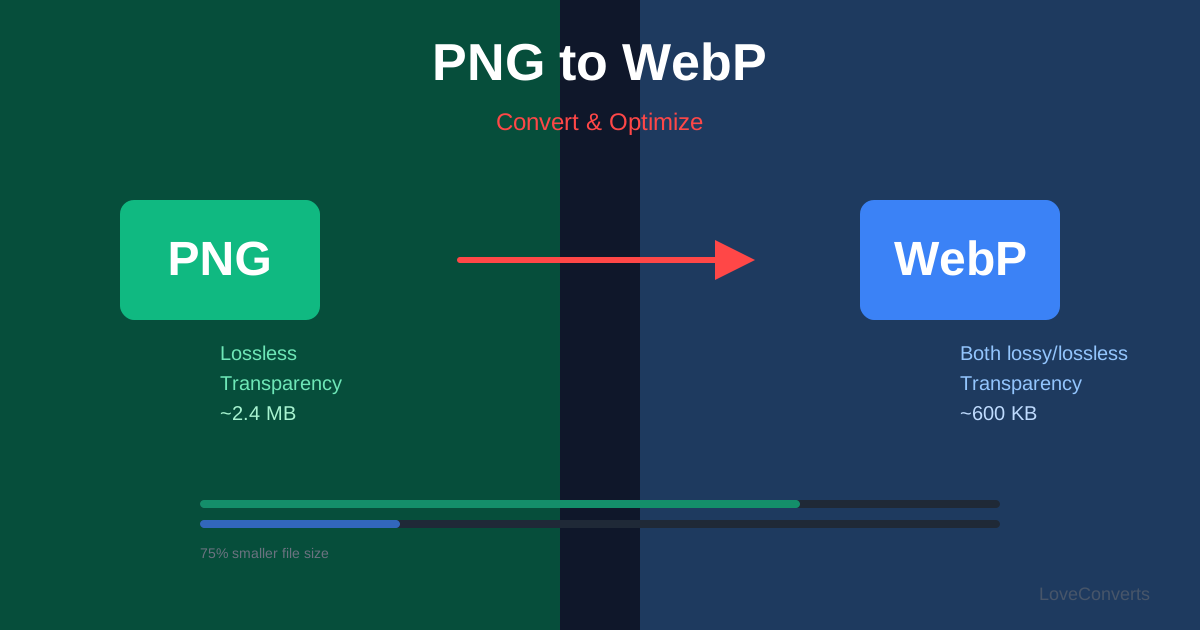
If you are using PNG images on your website, you are likely serving files that are 25-35% larger than they need to be. Converting PNG to WebP gives you the same visual quality (including transparency) in a smaller file. Every modern browser supports WebP, so there is no compatibility reason to hold back.
How to Convert PNG to WebP
- Open the PNG to WebP converter.
- Upload your PNG files. Up to 30 at once.
- Click Convert.
- Download the WebP files.
Why WebP Is Smaller Than PNG
PNG uses DEFLATE compression, which was designed in the 1990s. WebP uses more modern compression algorithms that are simply more efficient at finding patterns in image data. The result is smaller files with mathematically identical output (in lossless mode).
For images with lots of solid colors (screenshots, diagrams), the difference is huge: often 40-50% smaller. For complex photographic content, the savings are typically 25-30%.
Lossy vs Lossless WebP
WebP supports both modes:
- Lossless: Identical quality to PNG, just smaller files. Use this for graphics, screenshots, and anything where pixel-perfect accuracy matters.
- Lossy: Even smaller files with a tiny quality reduction. Use this for photos where file size matters more than pixel-perfect accuracy.
The converter uses lossless mode by default for PNG input, which gives you identical quality in a smaller file.
When to Keep PNG Instead
A few situations where PNG is still the better choice:
- Compatibility with older software: Some design tools, older CMSs, and email clients do not support WebP.
- Print workflows: Print shops typically expect PNG or TIFF, not WebP.
- Source files for editing: Keep your master copies as PNG and only convert to WebP for web delivery.
For web use, WebP is almost always the better choice. The image compressor can also output WebP if you want to compress and convert in one step.


