How to Crop Photos Online Without Photoshop
Cropping a photo should be simple, but Photoshop costs $23/month, GIMP takes 10 minutes to launch, and your phone's built-in editor does not always give you precise control. If you want to crop photos online for free, browser-based tools are the fastest option. No installation, no account, just upload and crop.
How to Crop a Photo Online (Step by Step)
- Open the online crop tool on LoveConverts.
- Upload your photo. Drag and drop or click to browse. Supports JPG, PNG, WebP, and other common formats up to 20MB.
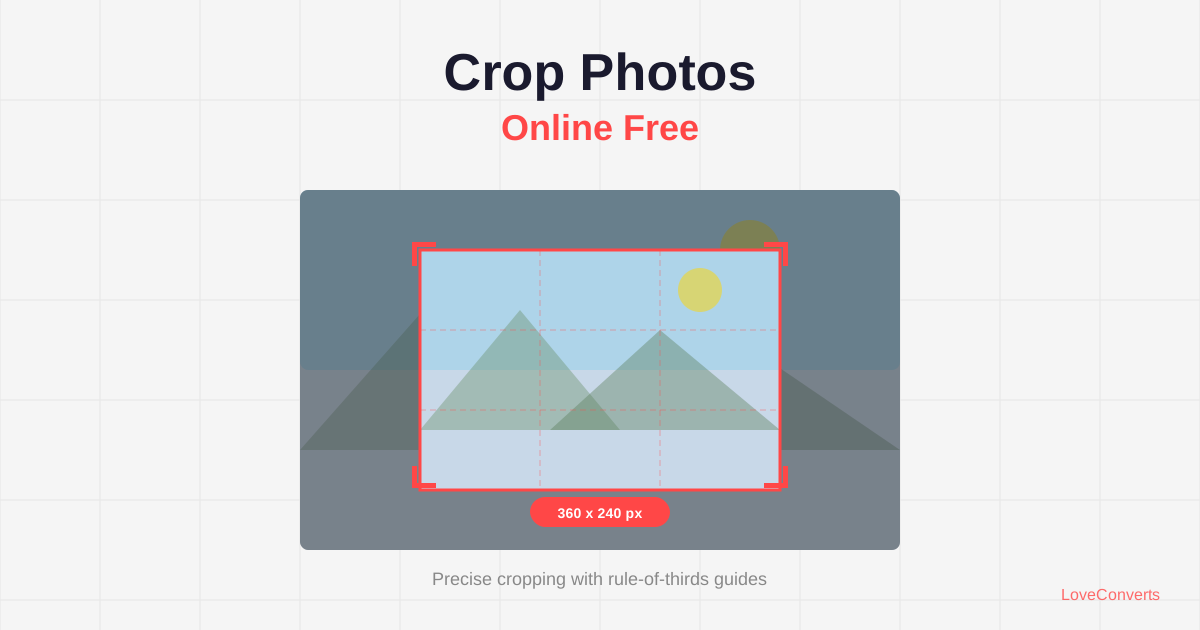
- Select your crop area. Drag the handles to define exactly what you want to keep. Use the aspect ratio buttons (1:1, 4:3, 16:9, etc.) for precise ratios.
- Click "Crop" and download the result.
The whole process takes about 15 seconds. Your original file is not modified, and nothing is saved on our servers.
Choosing the Right Aspect Ratio
Aspect ratio is the relationship between width and height. Picking the right one depends on where the photo will be used:
- 1:1 (square): Instagram posts, profile pictures, product thumbnails
- 4:3: Traditional photo prints (4x6, 8x10), PowerPoint slides
- 16:9: YouTube thumbnails, desktop wallpapers, blog headers
- 9:16 (vertical): Instagram Stories, TikTok, phone wallpapers
- 3:2: Standard DSLR photo ratio, 4x6 prints
- Free crop: When you just need to trim out a distracting element and do not care about a specific ratio
Cropping vs Resizing: What Is the Difference?
People often confuse these two operations. They are very different:
Cropping removes parts of the image. You are cutting away the edges to focus on a specific area. The remaining portion stays at full resolution. If you crop a 4000x3000 photo to a 2000x2000 square, the result is 2000x2000 pixels at original quality.
Resizing changes the entire image dimensions. You are making the whole image bigger or smaller. If you resize a 4000x3000 photo to 1000x750, every pixel in the image is scaled down. Use the resizer for this instead.
Often you need both: crop first to get the right composition, then resize to fit your target dimensions.
Tips for Better Crops
A few practical tips that make a real difference:
- Follow the rule of thirds. Place the main subject at one of the intersection points when you divide the frame into a 3x3 grid. This creates more visually appealing compositions than centering everything.
- Leave breathing room. Do not crop too tight around a person's head or a product. A little space around the subject looks more professional.
- Straighten before cropping. If the horizon is tilted, use the photo editor to rotate it slightly before cropping. A crooked horizon makes an otherwise good photo look careless.
- Crop at the highest resolution available. Start with the largest version of your image. Cropping already removes pixels, so starting with a small file gives you less to work with.
When Built-in Crop Tools Fall Short
Your phone's photo app has a crop feature, but it usually lacks precise pixel input and can be fiddly with exact ratios. Desktop operating systems have basic crop in their default image viewers, but again, precision is limited.
The main advantage of a dedicated online crop tool is precision. You get exact pixel dimensions, locked aspect ratios, and visual guides. For casual cropping, your phone's editor is fine. For anything that needs exact dimensions (social media, print, web design), use a proper tool.


