How to Upscale Images Without Getting Blurry Results
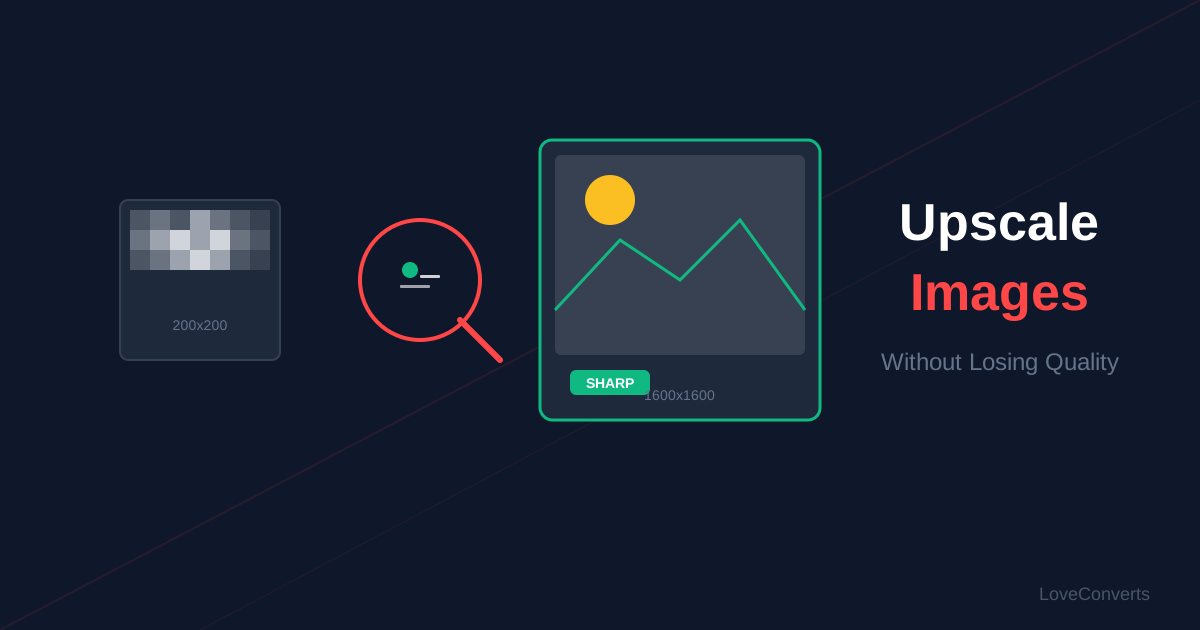
You have a small image, maybe a thumbnail or an old photo, and you need it bigger. The problem: when you simply stretch an image larger, it gets blurry. To upscale images without blur, you need algorithms that intelligently fill in the missing detail rather than just stretching pixels.
Why Enlarging Images Causes Blur
A digital image is a grid of pixels. A 500x500 image has 250,000 pixels. If you want it at 1000x1000, you need 1,000,000 pixels. Those extra 750,000 pixels do not exist in the original. The computer has to guess what they should look like.
Basic upscaling (nearest-neighbor or bilinear) just averages nearby pixels, which creates a soft, blurry result. Better algorithms like Lanczos3 use mathematical interpolation that preserves edges and detail much more effectively.
How to Upscale an Image Online
- Open the image upscaler on LoveConverts.
- Upload your image.
- Choose 2x or 4x enlargement. 2x is recommended for most cases.
- Download the enlarged image.
The tool uses Lanczos3 resampling with adaptive sharpening. This is the same algorithm used by professional image editing software.
Realistic Expectations for Upscaling
No upscaling tool can create detail that was never there. Here is what to expect:
- 2x enlargement: Results look good. Edges remain sharp. Slight softening in fine textures.
- 4x enlargement: Noticeable smoothing. Still usable for web display but not for printing.
- Beyond 4x: Diminishing returns. The image looks painted rather than photographic.
Tips for the Best Upscaling Results
- Start with the highest quality source. A clean, well-exposed original upscales much better than a noisy, dark, or heavily compressed one.
- Use 2x instead of 4x when possible. Two rounds of 2x upscaling actually produces better results than one round of 4x in many cases.
- Sharpen after upscaling. The AI enhance tool can add sharpness to upscaled images to compensate for the slight softening.
- Consider the output use. For web use at normal viewing distance, upscaled images look fine. For large prints, the softening becomes more obvious.
When to Use AI Enhancement Instead
For severely degraded images (old photos, very small thumbnails), the AI enhance tool may produce better results than simple upscaling. It combines upscaling with denoising, sharpening, and other processing to improve overall image quality, not just size.


