PNG vs JPG: Which Format Should You Use?
Should you save that image as PNG or JPG? The answer depends entirely on what the image contains and where you plan to use it. These two formats solve different problems, and picking the wrong one either wastes storage space or ruins your image quality.
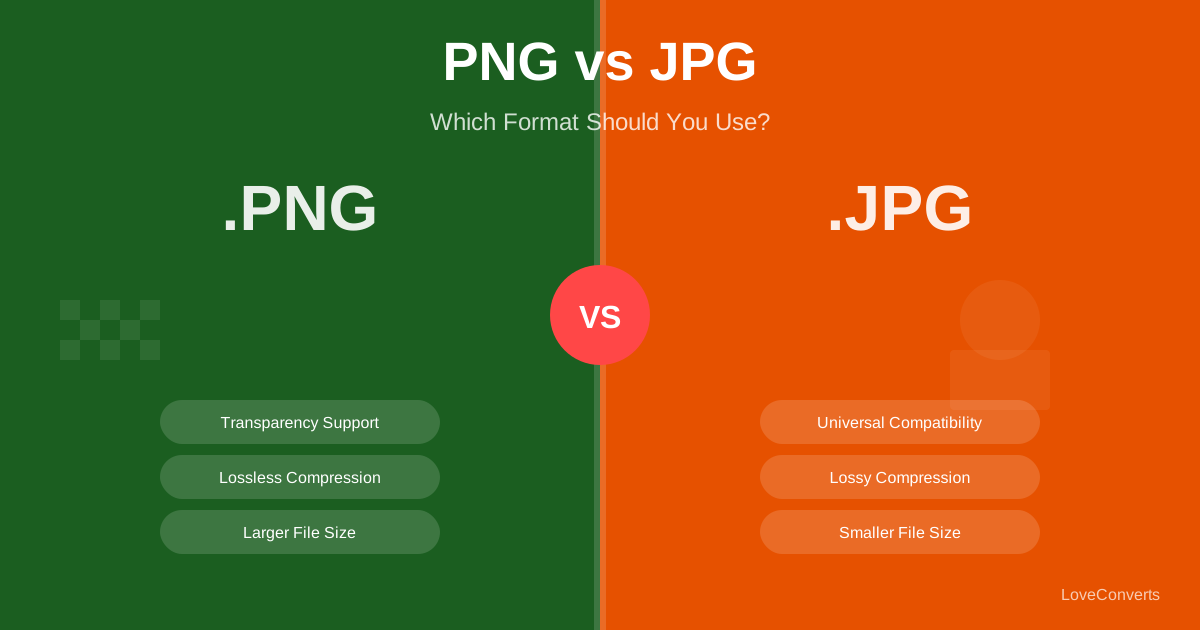
Here is the short version: JPG is for photos. PNG is for graphics with sharp edges, text, or transparency. Now here is the full explanation.
How JPG Compression Works
JPG uses lossy compression. It analyzes your image, identifies areas where your eyes would not notice small changes, and simplifies those areas. Smooth gradients in the sky? JPG compresses those extremely well. The result is a much smaller file with quality that looks nearly identical to the original.
The downside: JPG struggles with sharp edges. If you save a screenshot with text as JPG, you will notice fuzzy halos around the letters. Each time you open, edit, and re-save a JPG, it compresses again, losing a bit more quality. This is called generation loss.
How PNG Compression Works
PNG uses lossless compression. It finds more efficient ways to store the pixel data, but never throws anything away. Every single pixel in the output is exactly the same as the input. The image is mathematically identical.
PNG also supports transparency (alpha channel), which means you can have images with see-through backgrounds. This is essential for logos, icons, and UI elements that need to sit on different colored backgrounds.
The downside: PNG files are much larger than JPG files for photographic content. A 3000x2000 photo might be 800KB as JPG but 8MB as PNG. For photos, that extra space buys you nothing visible.
When to Use JPG (and When Not To)
Use JPG for:
- Photographs and camera images
- Complex images with gradients and many colors
- Web images where file size matters
- Email attachments (smaller = faster to send)
- Social media posts
Do not use JPG for:
- Text-heavy images or screenshots (artifacts around text)
- Logos or icons (edges get fuzzy)
- Anything that needs a transparent background
- Images you plan to edit repeatedly (generation loss)
Need to convert? The PNG to JPG converter handles it instantly.
When to Use PNG (and When Not To)
Use PNG for:
- Screenshots with text
- Logos and brand graphics
- Icons and UI elements
- Anything with transparency
- Graphics with solid colors and sharp lines
- Master copies of images you will edit later
Do not use PNG for:
- Photographs (files will be huge with no quality benefit)
- Large images on bandwidth-limited websites
- Situations where a 50KB JPG would do instead of a 500KB PNG
Converting the other direction? Use the JPG to PNG converter. Keep in mind that converting JPG to PNG will not restore quality that was already lost during JPG compression.
The Third Option: WebP
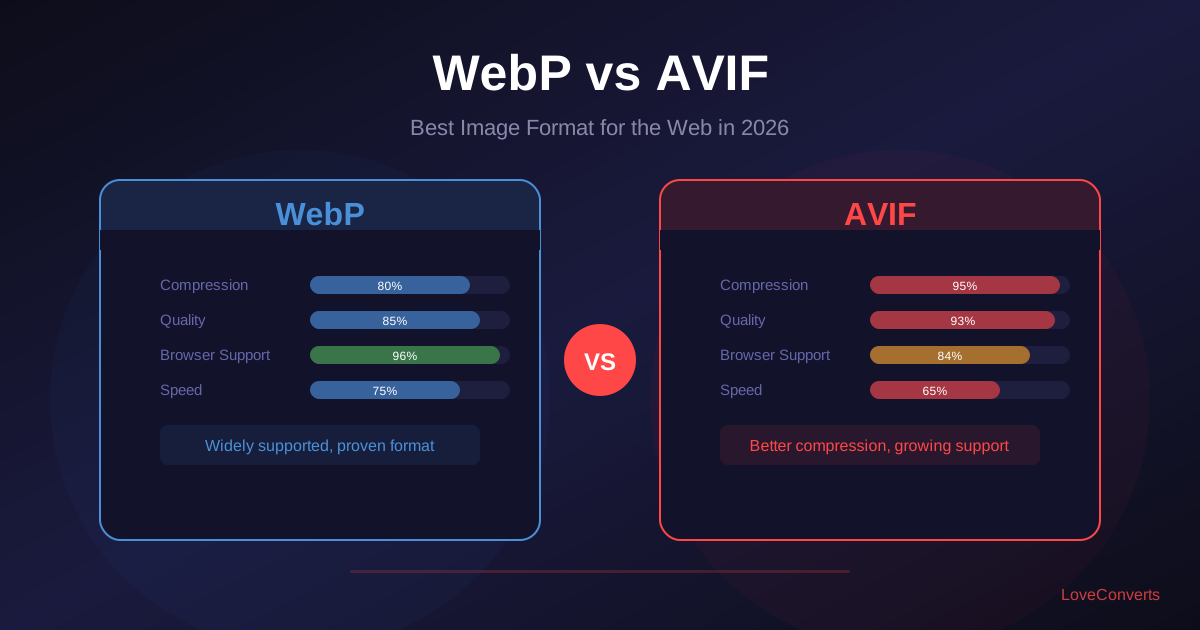
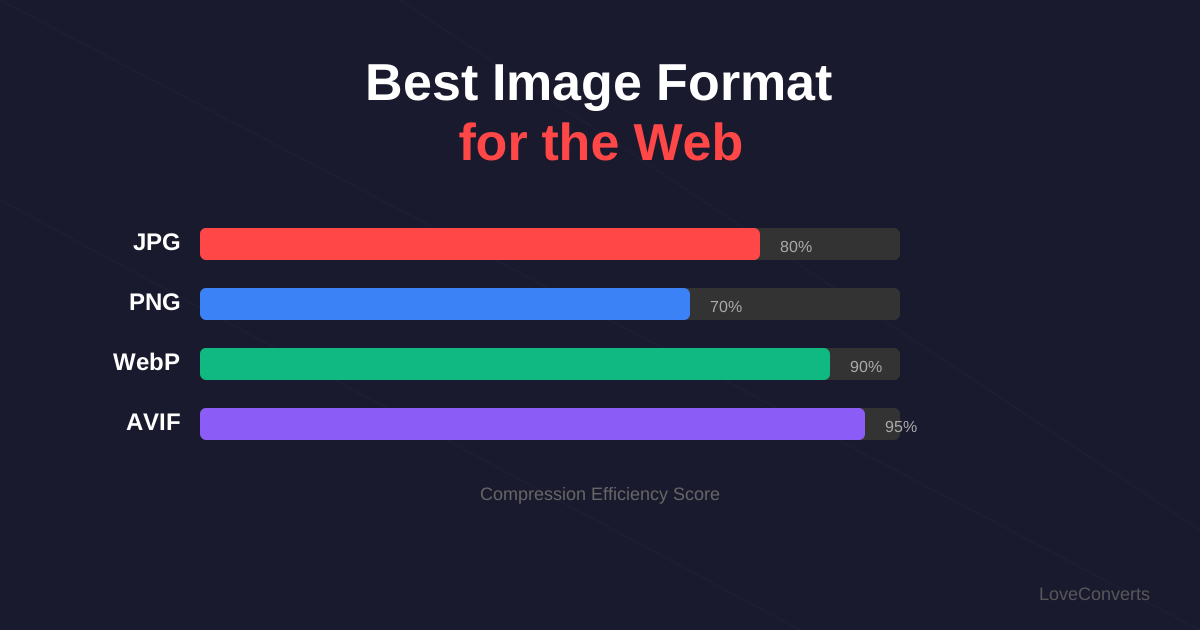
There is a format that combines the best of both worlds. WebP supports both lossy and lossless compression, plus transparency. WebP files are 25-35% smaller than JPG at the same quality, and WebP lossless is typically 25% smaller than PNG.
All modern browsers support WebP. If you are building a website, WebP is usually the best choice over both PNG and JPG. You can convert your images using the image compressor which supports WebP output.
Quick Decision Guide
Still not sure? Ask yourself these three questions:
- Is it a photo or complex image? Use JPG (or WebP for web).
- Does it need transparency? Use PNG (or WebP).
- Is it a screenshot, logo, or graphic with text? Use PNG.
That covers 95% of cases. For the remaining 5%, if you are doing professional print work, ask your printer what they prefer. If you are optimizing a high-traffic website, test both formats and measure the actual file sizes.