Best Image Format for Instagram in 2026
Choosing the best image format for Instagram determines how sharp your posts look in the feed. Instagram re-encodes every image you upload, so even a perfect original can look soft or blurry after posting. The goal is to upload in a format, size, and resolution that gives Instagram's compression algorithm the least reason to degrade your image.
This guide covers what format to use for different types of content, the exact dimensions Instagram expects, and how to prepare images so they survive the upload process.
How Instagram Processes Your Uploads
When you upload a photo, Instagram does several things to it:
- Converts the image to JPG (regardless of what format you uploaded)
- Resizes it if it exceeds Instagram's maximum dimensions
- Applies its own compression to reduce file size for fast loading
- Strips most metadata (EXIF data, color profiles)
This processing is automatic and cannot be disabled. The compression is often aggressive, especially on larger files. The strategy for maintaining quality is to give Instagram a file that is already at the optimal size and quality, so it applies minimal additional compression.
JPG for Photos, PNG for Graphics
The short answer to "which format?" depends on what you are posting:
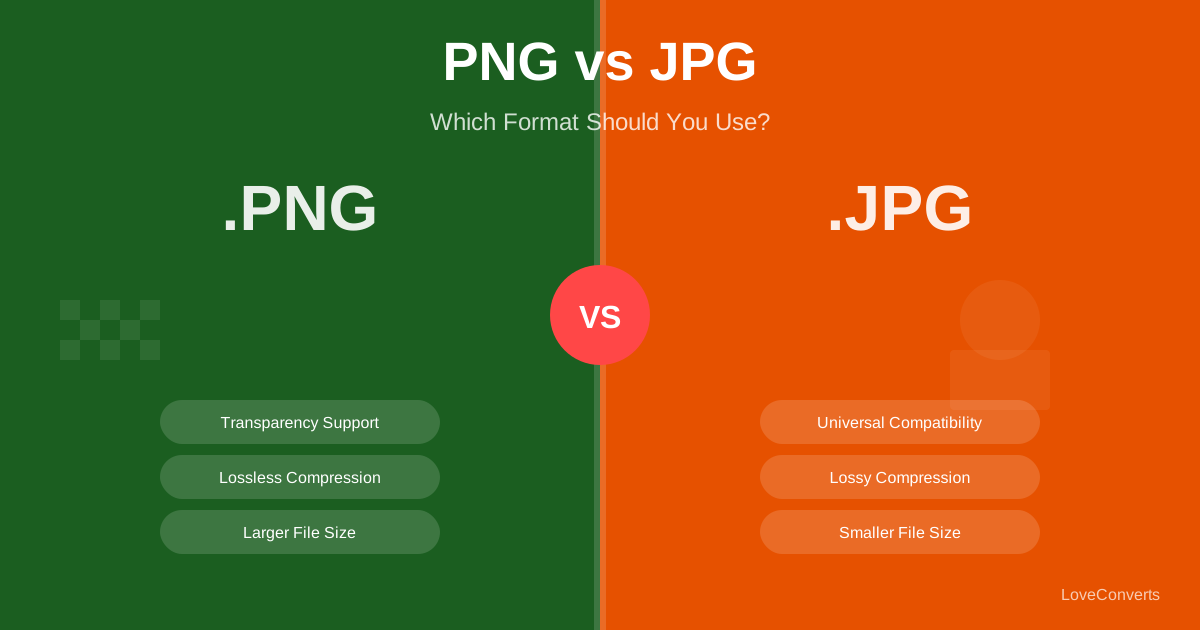
Use JPG when:
- Posting photographs (portraits, landscapes, product shots, food)
- Sharing images with smooth gradients and many colors
- File size is a concern (JPG is smaller than PNG)
Use PNG when:
- Posting graphics with text overlays, logos, or typography
- Sharing illustrations, infographics, or screenshots
- Images have sharp edges, solid color areas, or fine lines
JPG compression creates artifacts around sharp edges and text, making them look slightly fuzzy. PNG preserves these details better. Since Instagram converts everything to JPG during upload, starting with a high-quality PNG gives the algorithm a cleaner source to compress from, producing better results for graphic content.
Exact Dimensions for Every Instagram Format
Uploading at Instagram's exact expected dimensions prevents the app from resizing your image, which is an additional compression step that reduces quality:
- Square post: 1080x1080 pixels
- Portrait post: 1080x1350 pixels (4:5 ratio, takes up the most feed space)
- Landscape post: 1080x566 pixels (1.91:1 ratio)
- Stories and Reels: 1080x1920 pixels (9:16 ratio)
- Profile picture: 320x320 pixels (displayed at 110x110)
Use the image resizer to crop and resize your images to these exact dimensions before uploading.
How to Minimize Quality Loss
Here is a practical workflow for preparing images that look their best on Instagram:
- Edit your photo in your preferred editor or the LoveConverts photo editor
- Resize to exact dimensions (1080x1350 for portrait posts, 1080x1080 for square)
- Save as JPG at quality 95% for photos, or PNG for graphics. Do not use 100% quality because the file will be unnecessarily large without visible benefit.
- Check file size. Aim for 1-3MB. Under 1MB and the image might lack detail. Over 5MB and Instagram will compress more aggressively. Use the image compressor if the file is too large.
- Upload from the original device. Avoid sending the image through WhatsApp or Messenger first, as those apps apply their own compression. Transfer via AirDrop, USB, or cloud storage to preserve quality.
Color Space and Color Profiles
Instagram uses the sRGB color space. If your camera or editing software saves images in Adobe RGB or ProPhoto RGB, the colors will shift when Instagram converts to sRGB. Always export in sRGB color space to ensure your colors appear the same on Instagram as they did in your editor.
Most phone cameras already shoot in sRGB, so this is primarily a concern for photographers using professional cameras and editing in Lightroom or Photoshop.
Formats Instagram Does NOT Support
Instagram only accepts JPG, PNG, BMP, and non-animated GIF. The following formats are not supported and must be converted first:
- WebP: Convert to JPG using the JPG converter
- HEIC: Convert using the HEIC to JPG converter
- AVIF: Convert to JPG or PNG
- TIFF: Convert to JPG
- Animated GIF: Instagram does not support animated images. Convert to video format instead.
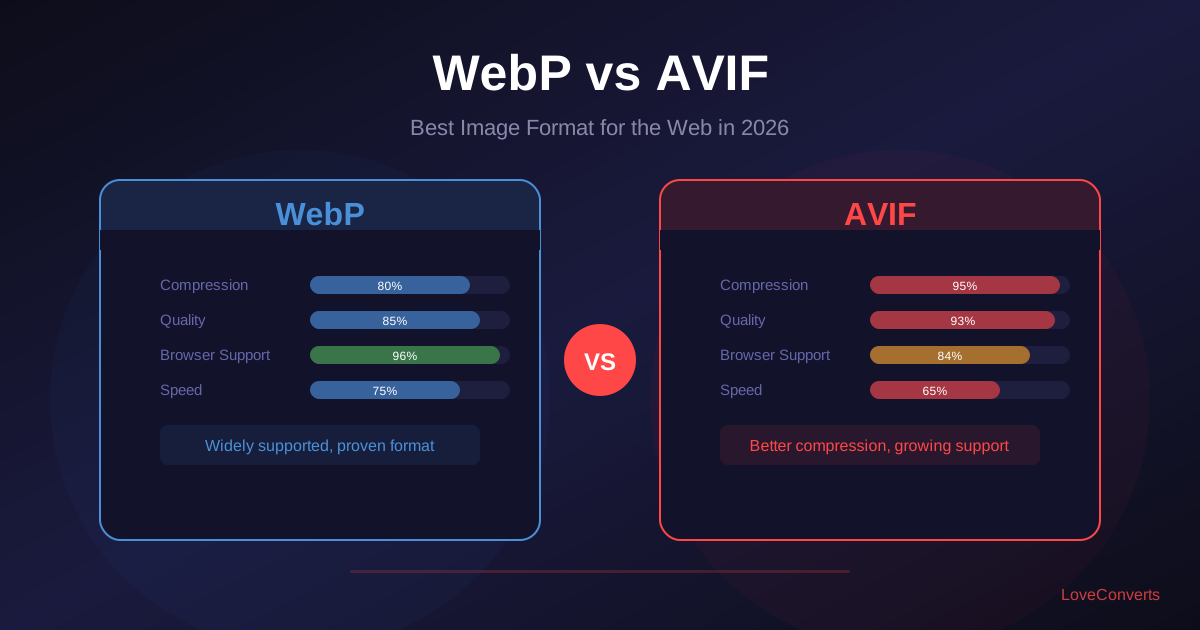
If you work with modern image formats like WebP or AVIF on your website and need to repurpose them for Instagram, always convert to JPG (for photos) or PNG (for graphics) before uploading. This extra step takes seconds and prevents upload errors or unexpected quality issues.