Image Compression for Beginners: A Complete Guide
If you have ever been told to "compress your images" and did not know where to start, this guide is for you. Image compression is the process of making image files smaller so they take up less storage, upload faster, and load quicker on websites. It sounds technical, but the practical steps are simple.
Why Images Need Compression
A photo from a modern phone is typically 3-8MB. That is fine for one photo, but when you have 50 photos on a website page, blog post, or presentation, you are looking at 150-400MB of data. No one wants to wait for that to load.
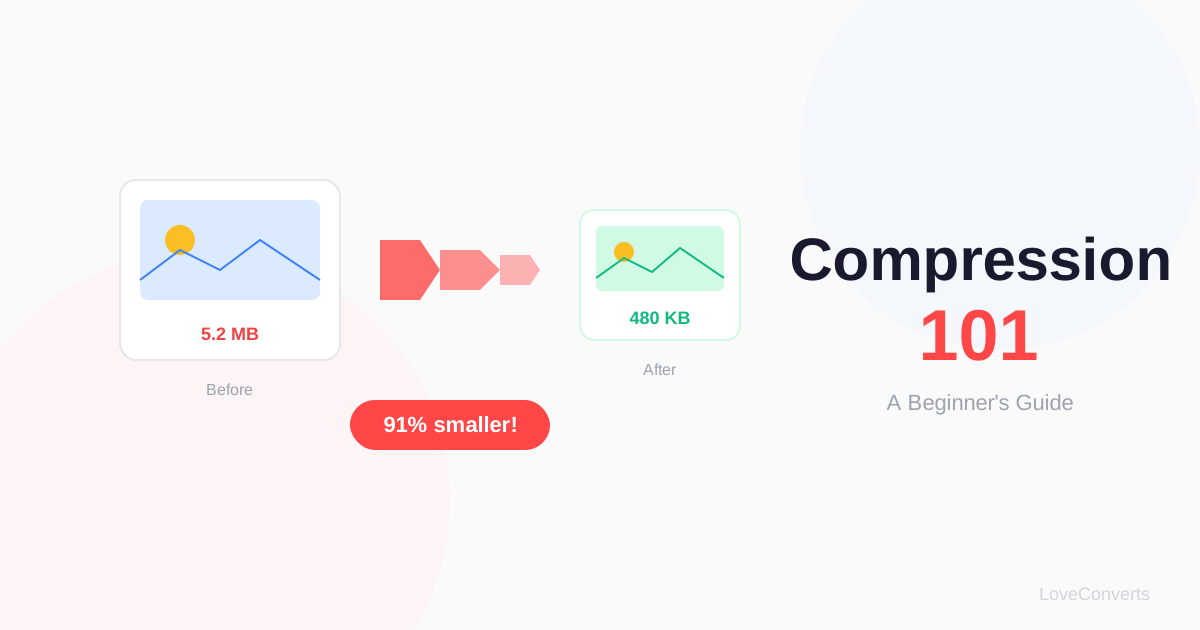
Compression reduces those files to a fraction of their original size. A 5MB photo compressed properly becomes 300-500KB. It looks the same on screen, but loads 10x faster.
The Only Setting You Need to Know: Quality
When you compress an image, the main setting is "quality." It is a number from 1 to 100:
- 80-85: Use this. It is the default on most tools for good reason. Files shrink by 60-70%, and you cannot see the difference.
- 90-100: Almost no compression. Files stay large. Only needed for professional printing.
- 60-79: Heavier compression. You might notice some softness. Fine for thumbnails and social media.
- Below 60: Avoid unless you specifically need tiny files and do not care about quality.
That is it. Set quality to 80, compress, and move on. You do not need to understand the technical details to get good results.
Compression vs Resizing: Know the Difference
These are two different things that both reduce file size:
Compression keeps the image the same size (same width and height) but uses clever math to store the data more efficiently. Think of it as packing a suitcase more tightly.
Resizing changes the actual dimensions of the image. A 4000x3000 photo resized to 1200x900 has fewer pixels and therefore a smaller file. Think of it as using a smaller suitcase.
For the biggest file size reduction, resize first (using the resizer), then compress. Together, they can reduce a file by 90-95%.
Formats: JPG, PNG, WebP
The three formats you will encounter most:
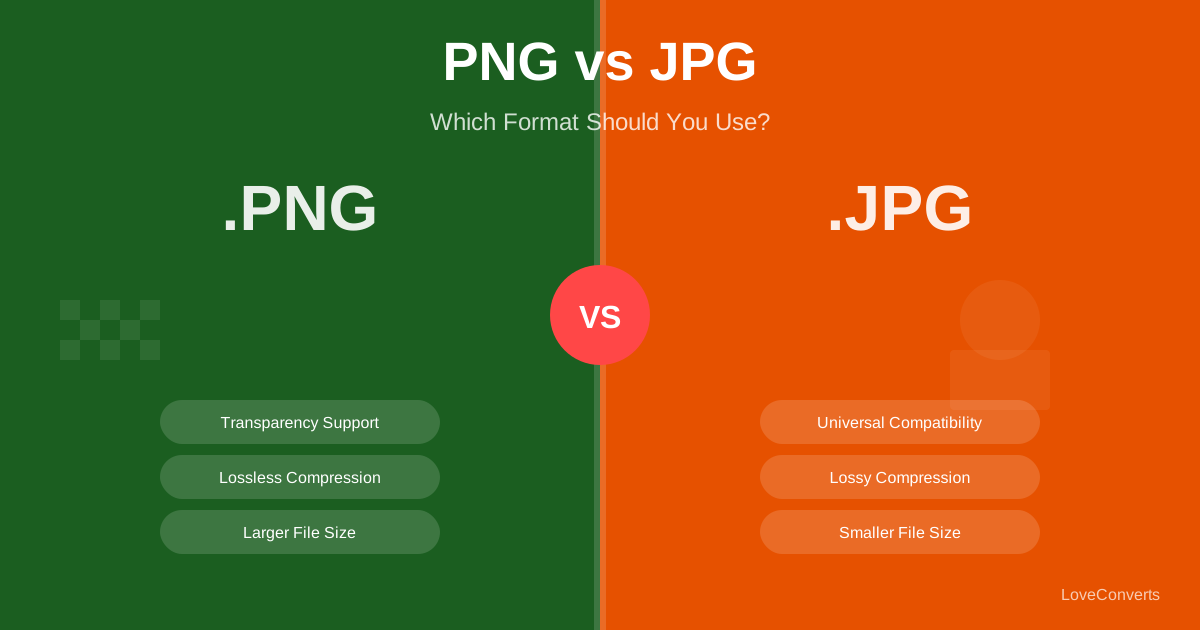
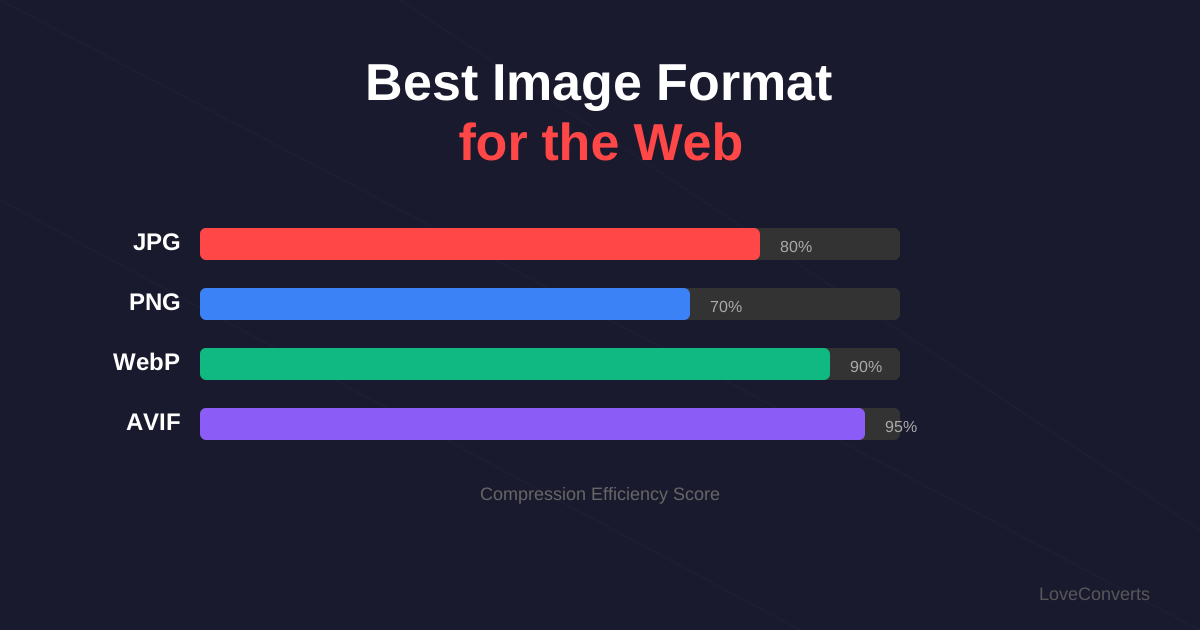
- JPG: For photos. Uses lossy compression (removes some data). Small files.
- PNG: For screenshots and graphics. Uses lossless compression (keeps all data). Larger files.
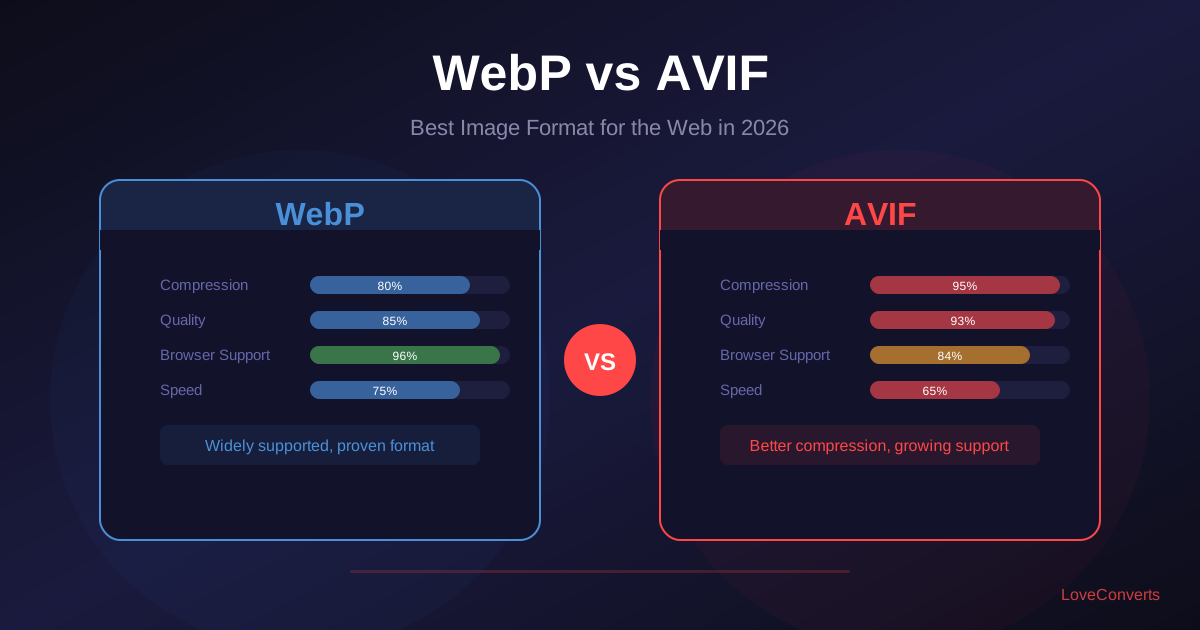
- WebP: Newer format that is better than both JPG and PNG. Supports both lossy and lossless. Smallest files.
If you are not sure, JPG for photos and PNG for everything else is a safe default. If you want the smallest files, convert to WebP using the image converter.
Common Mistakes to Avoid
- Compressing the same image repeatedly. Each round of JPG compression removes more data. Compress once, save, and do not re-compress.
- Uploading 4000px images when 1200px is enough. Resize first, always.
- Using PNG for photos. PNG files are huge for photographic content. Use JPG or WebP instead.
- Compressing below quality 60. The file gets smaller, but the quality drop becomes obvious.