Lossy vs Lossless Compression: What Is the Difference?
When you save an image, the file format determines whether lossy or lossless compression is used. This choice affects both the file size and whether any quality is lost. Understanding the difference takes 5 minutes and helps you make better decisions about image formats forever.
Lossless Compression: Nothing Is Lost
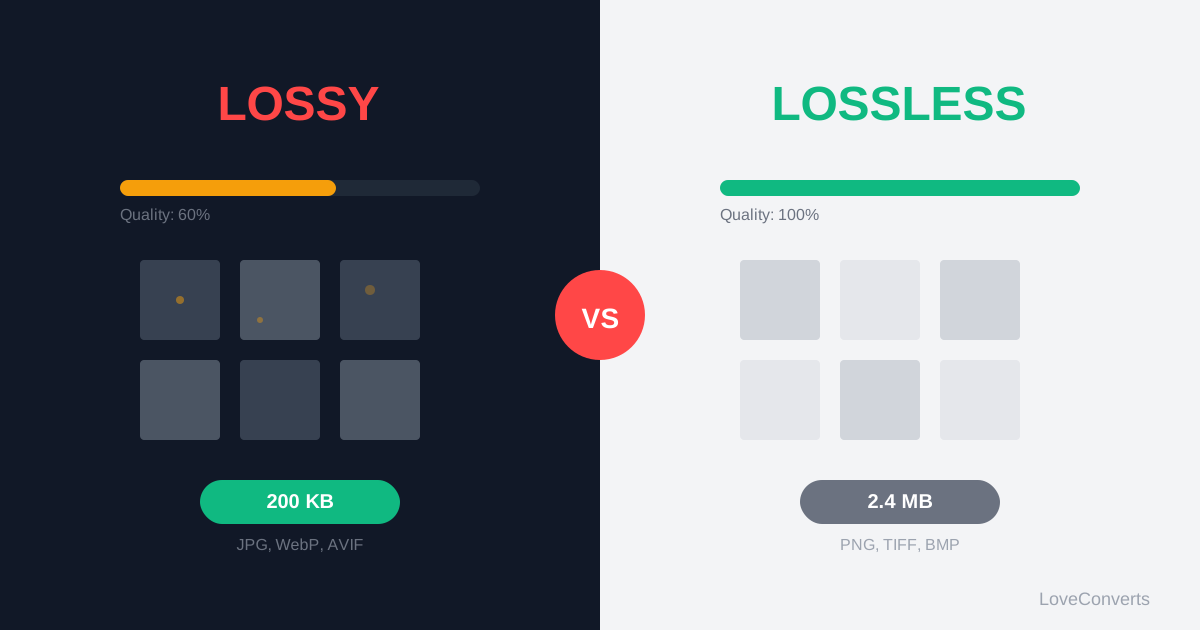
Lossless compression works like a ZIP file for images. It finds more efficient ways to describe the pixel data, but every single pixel in the output is identical to the input. Open the file, and it is mathematically the same image.
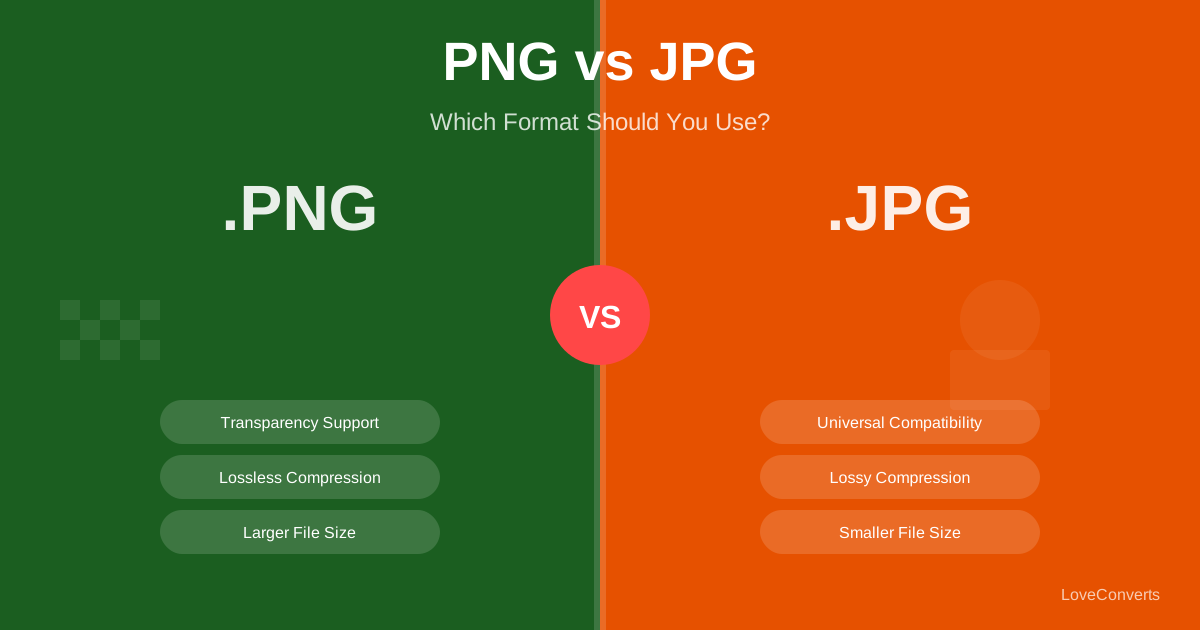
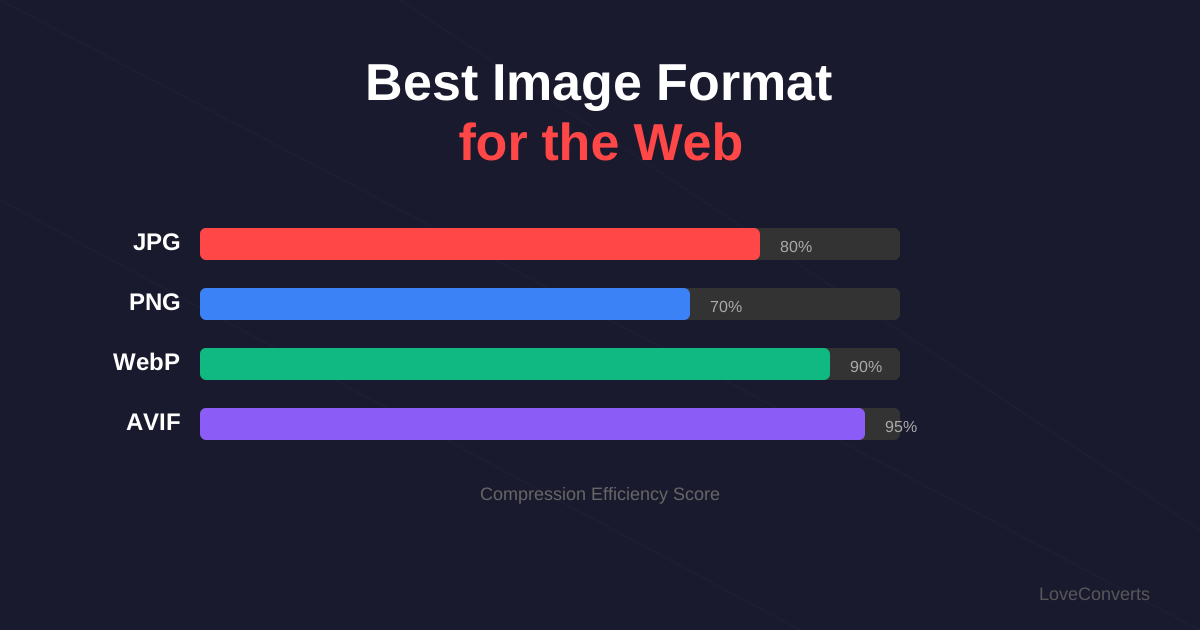
Formats that use lossless compression: PNG, TIFF, WebP (lossless mode), GIF
The advantage: perfect quality. The disadvantage: files are much larger than lossy alternatives.
Lossy Compression: Controlled Quality Reduction
Lossy compression analyzes your image and identifies information your eyes are unlikely to notice. It then removes that information to reduce the file size. The more aggressively it compresses, the more data it removes, and the smaller (but lower quality) the file becomes.
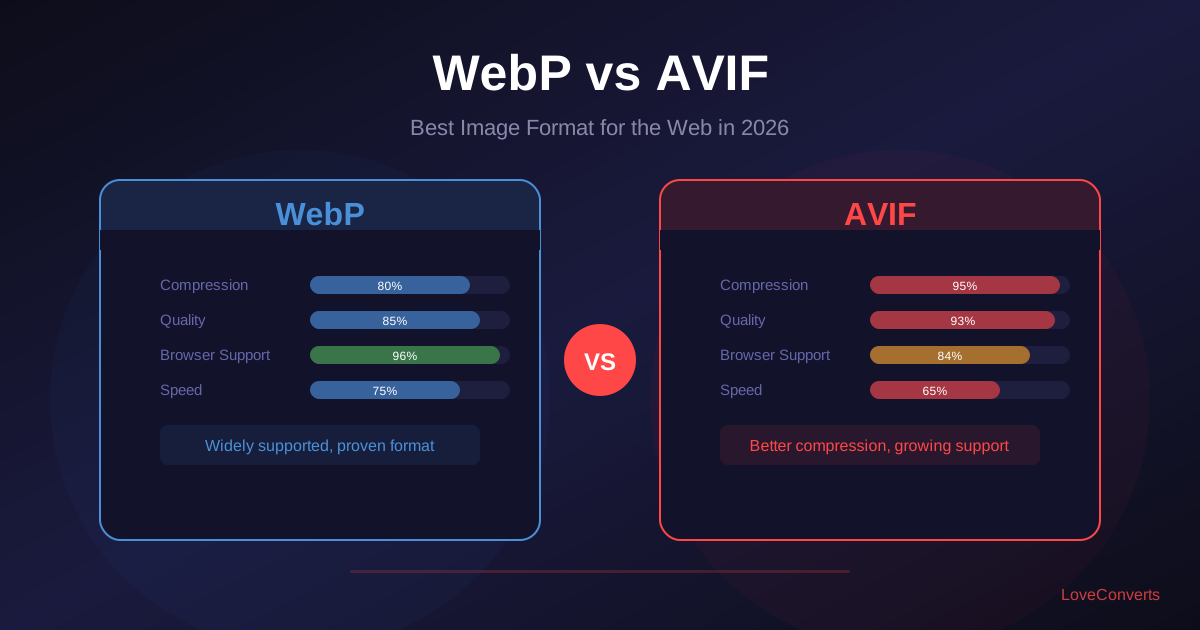
Formats that use lossy compression: JPG, WebP (lossy mode), AVIF
The advantage: dramatically smaller files. A 10MB lossless image might compress to 500KB with lossy compression. The disadvantage: some quality is permanently lost.
How to Choose Between Lossy and Lossless
The decision is straightforward:
- Use lossy for photos, web images, and social media. The quality loss at settings of 80+ is invisible, and the file size savings are 80-90%.
- Use lossless for screenshots, text images, logos, and master copies. These image types show lossy compression artifacts visibly, and you need exact pixel accuracy.
The image compressor handles both types. JPG and WebP output uses lossy compression with a quality slider. PNG output uses lossless compression.
The Quality Setting Explained
When you see a "quality" setting (1-100) on a lossy format, it controls how aggressively data is removed:
- 90-100: Minimal data removal. Large files. Barely distinguishable from lossless.
- 80-89: The sweet spot. Significant size reduction. Invisible quality loss on screen.
- 60-79: Aggressive compression. Some softness visible in detailed areas.
- Below 60: Heavy artifacts. Only use for tiny thumbnails where quality is not important.
A Common Mistake: Re-compressing Lossy Files
Each time you open a JPG, edit it, and save it again as JPG, another round of lossy compression is applied. After several rounds, quality degrades noticeably. This is called "generation loss."
To avoid this: keep your original files in lossless format (PNG or TIFF). Only convert to lossy (JPG, WebP) as the final step before sharing or publishing. If you convert between lossy formats (like PNG to JPG), only do it once.